Overview
Now that we've gotten some other other programs out of the way. We can focus on what do we use to write our code? You can use a basic barebones text editor to code but its just not that efficient. There are a bunch of editors that come packed with code validation, code highlighting, snippets, build tools, etc... built into the program.
Installing Code Editor
You can't go wrong with Visual Studio Code
If you have it installed already Great!
If not we'll be installing with homebrew cask.
brew cask install visual-studio-codeYou can check that VS Code is installed by opening the App. Should be located in /Applications/Visual/Visual Studio Code or you can used Spotlight and open it by pressing CMD + Space type Visual Studio Code
Welcome Screen
You should see a welcome Screen like this.
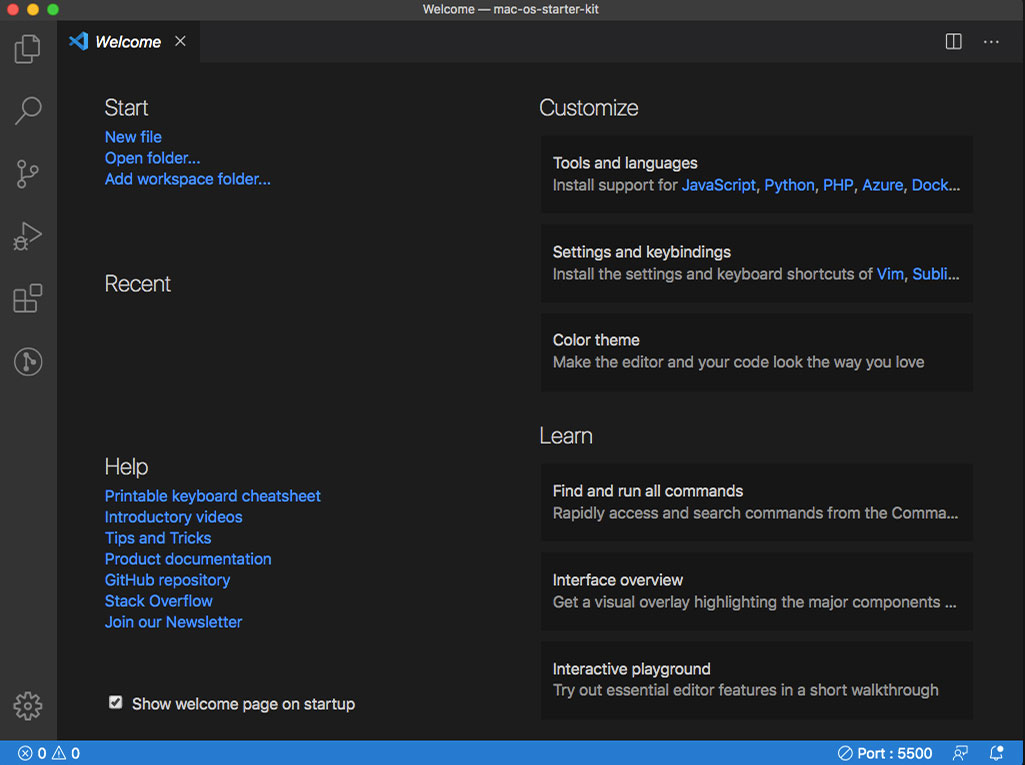
Lets Create a file. click New file on the welcome screen.
Paste the code <html> code in the file.
<html lang="en">
  <head>
    <meta charset="UTF-8" />
    <meta name="viewport" content="width=device-width, initial-scale=1.0" />
    <title>MacOS Web Development Starter Kit</title>
  </head>
  <body>
    <h1>MacOS Web Development Starter Kit</h1>
    <p>Hello MacOS Web Developers!</p>
  </body>
</html>
Save the file cmd s name it index.html and choose location where you want to save the file.
Installing Extensions
We will install the Live Server Extention. This extension will launch a development local Server with live reload feature for static & dynamic pages.
Click on the Extension Tab on the left side.  . Type in "Live Server". Click on the Extension and click "Install"
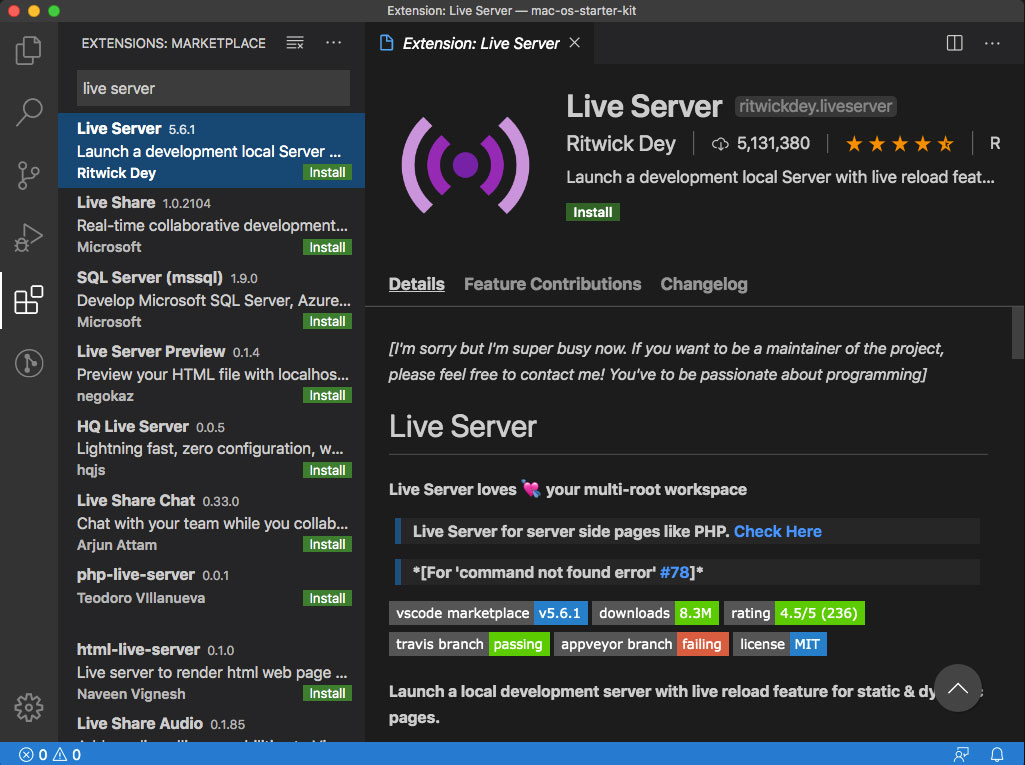
Now that Live Server is installed lets test out our index.html file.
Click on the Explorer Icon of the top left  .
.
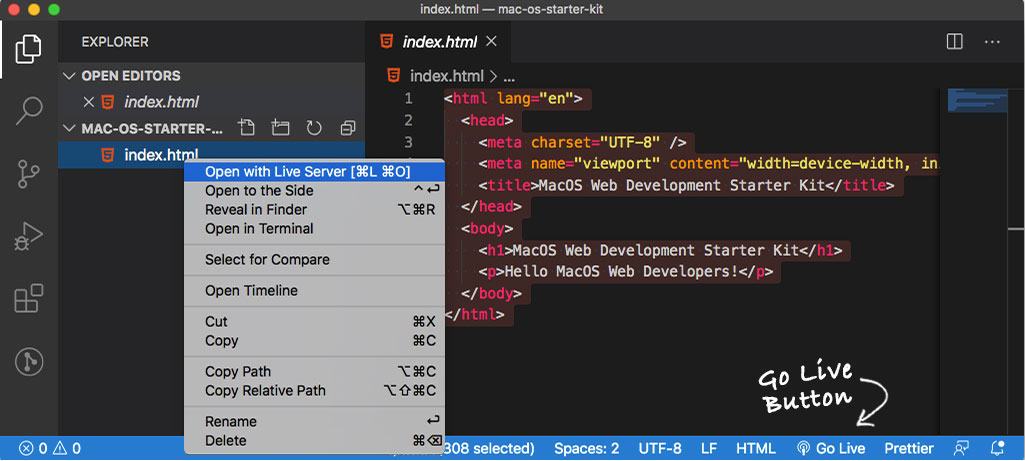
Right click on the index.html file and choose "Open with Live Server" or you can click on the "Go Live" Button on the bottom right of the Window.
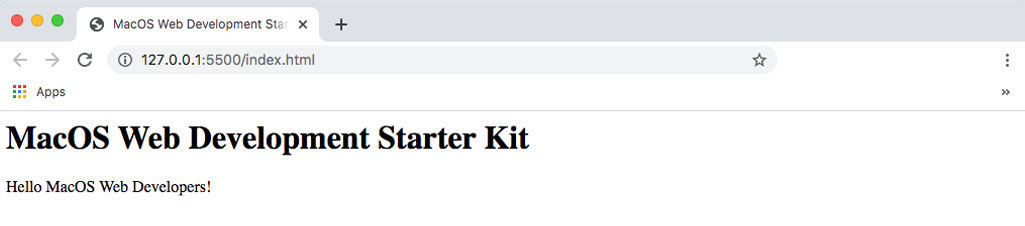
Live Server will open your default browser. By default the local server will run on http://127.0.0.1:5500/index.html
Terminal
VS Code has a built in Terminal window that opens to your project's root folder.
Show Terminal control + ` (backtick), this will improve your workflow, and make it easier when having to work with Command Line while developing, ie: installing node packages and run your scripts, setup git, etc...
As you can see below, the terminal is set to the root of the project.
List the files in the project directory.
ls -lashow location of the Project Directory
pwd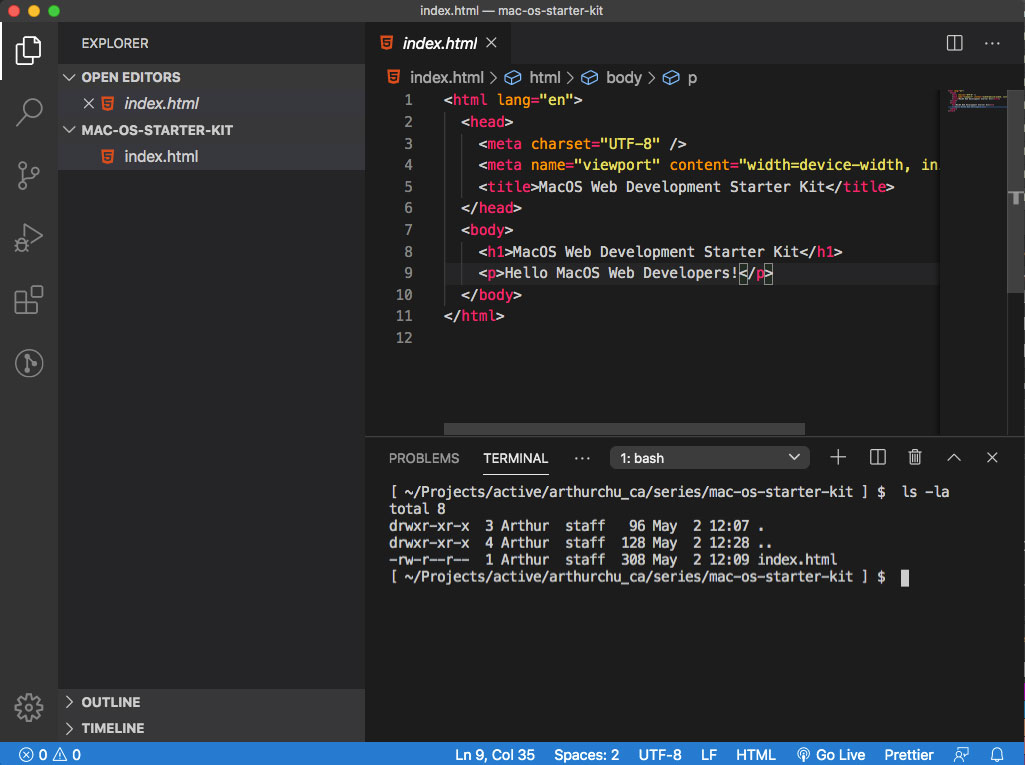
Conclusion
This is just touching the tip of the iceberg with what you can do with Visual Studio Code. There are a lot of extensions to build out your editor. It all depends on what you need when you're developing.